Troubleshooting
Common problems and how to fix them.
iCloud shows "Not available" on my watch
This is a watchOS system issue, not a WatchieBesti problem. It means your watch has temporarily lost its connection to iCloud at the device level.
WatchieBesti stores all your data locally on the watch and iPhone, so this won't affect your pet or your progress. You can ignore it as far as the app is concerned.
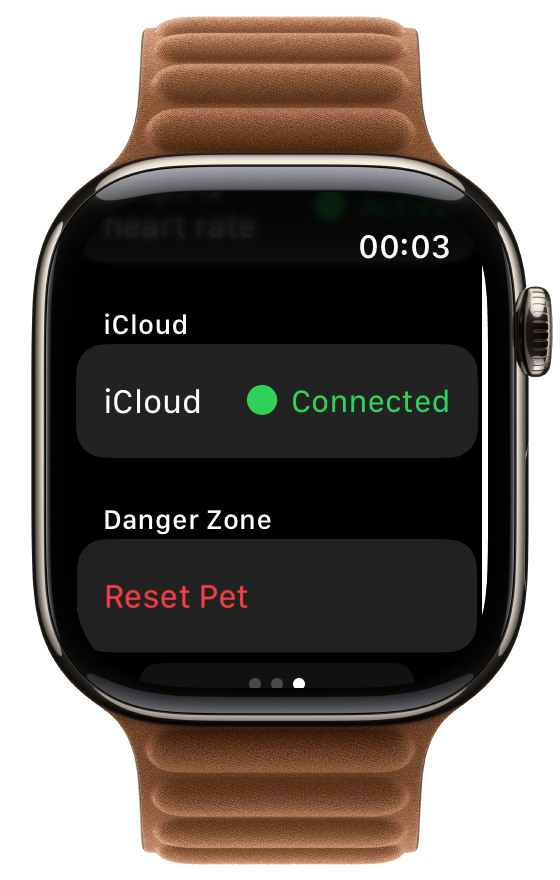
To resolve it:
- 01 On your iPhone, open the Watch app.
- 02 Go to General → Reset → Reset Sync Data.
- 03 Wait a minute, then check your watch — iCloud should reconnect.
If that doesn't work, restart your watch: press and hold the side button, then slide to power off. Power it back on and the connection usually re-establishes itself.
My pet's mood isn't changing
Your pet updates based on activity data from HealthKit. A few things to check:
-
→
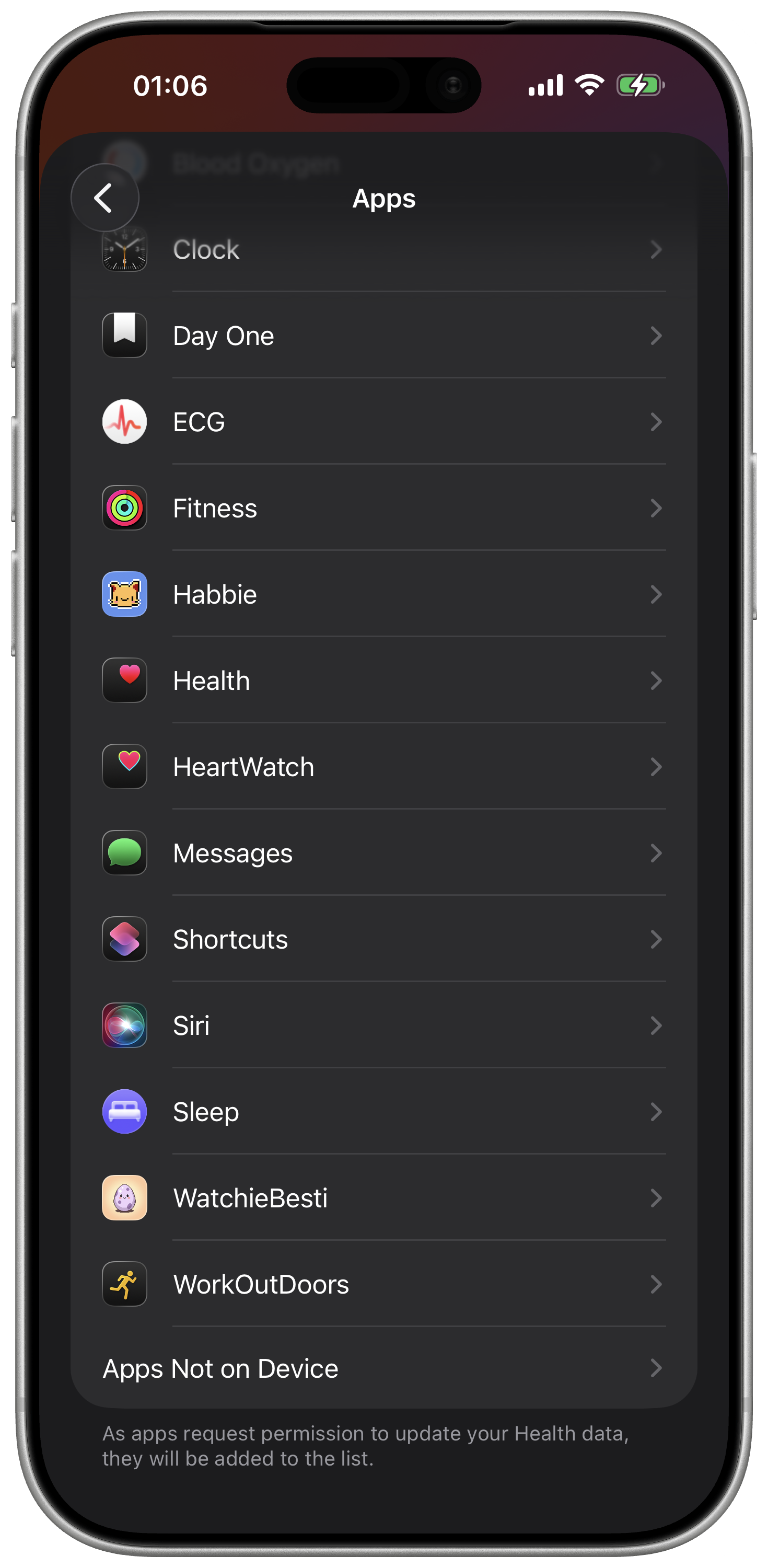
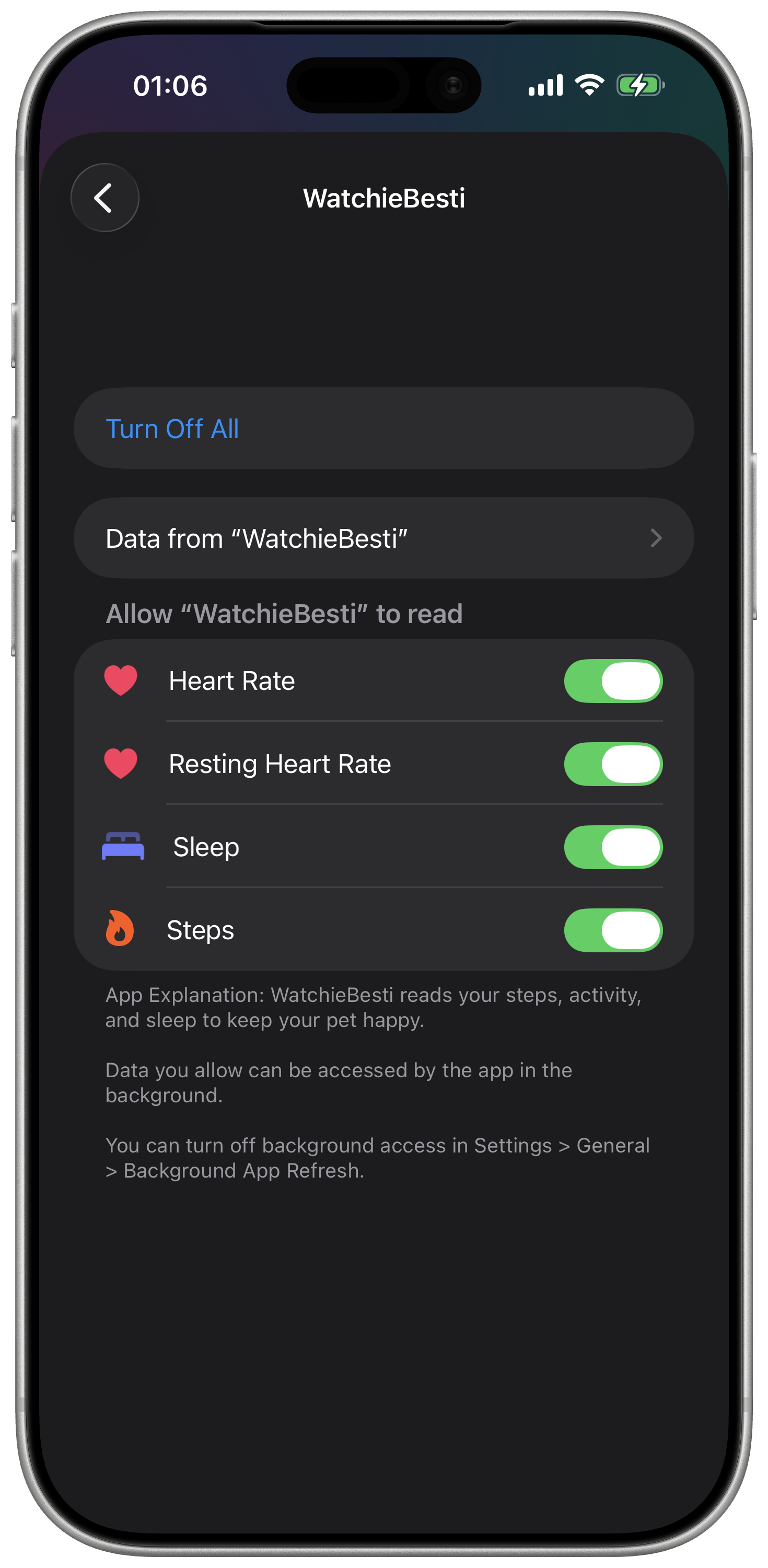
Health permission: Open the iPhone Health app → your profile picture → Privacy → Apps → WatchieBesti. Make sure step count and heart rate are both enabled.
-
→
Give it time: Your pet checks in on your activity in the background. After a walk, it may take a few minutes for the mood to update.
My pet disappeared / reset to an egg
This can happen if the app was deleted and reinstalled, or if the watch was unpaired and re-paired. WatchieBesti uses iCloud to back up your pet's data — if you reinstall the app and are signed into the same Apple ID, your pet should restore automatically. If your pet doesn't appear after reinstalling, open the app and wait a moment for iCloud to sync.
The complication shows a key/code instead of text
This is a display bug that occurs when the app is updated but the watch hasn't fully installed the new version yet.
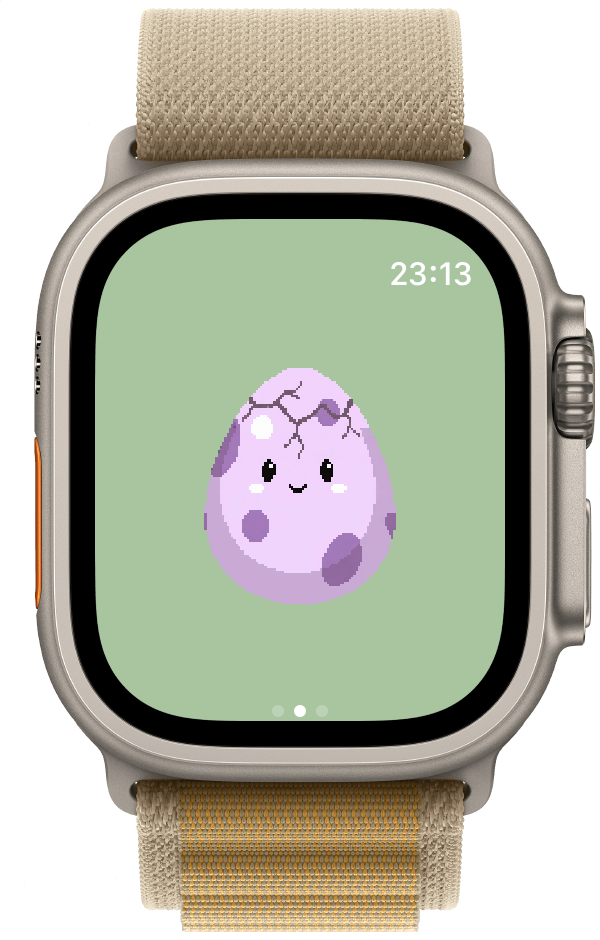
Force-quit the app on your watch (swipe up from the watch face, swipe the app away), then reopen it.
If the complication still shows the wrong text, try removing and re-adding it to your watch face.
The watch app won't open / crashes immediately
Try the following in order:
- 01 Force-quit the app on the watch and reopen it.
- 02 Restart your watch (press and hold the side button → slide to power off).
-
03
On iPhone, open the Watch app → scroll to WatchieBesti → toggle it off and back on to reinstall the watch app.
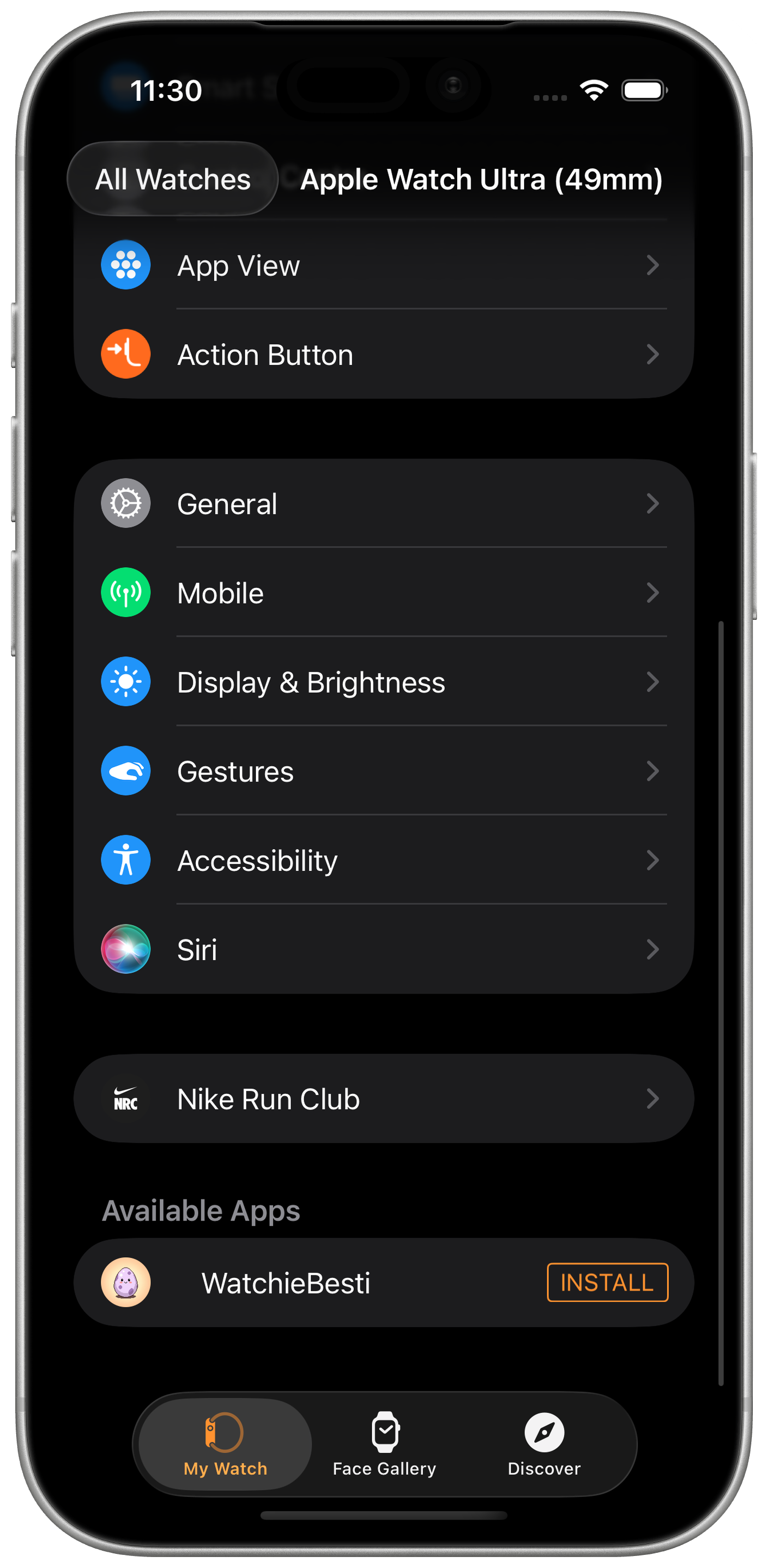
iPhone Watch app → WatchieBesti
If none of these help, please get in touch — details below.
I picked the wrong kingdom
The kingdom you pick at hatch is locked for that pet — you can't switch mid-life. The good news: it's not forever. When your pet graduates into your collection, a new egg appears, and you pick again.
If you'd rather not raise the current pet at all, you can reset everything in the iPhone app under Settings → Reset all data. Note that this clears your kingdom collection too.
My pet won't graduate
Graduation requires sustained engagement once your pet reaches adult. That means opening the app, keeping the watch on, and letting health data flow through HealthKit on a regular basis.
If days are going by with no progress, check that HealthKit permissions are still granted (iPhone → Settings → Health → Data Access & Devices → WatchieBesti) and that the watch app has been opened recently. Graduation is not based on raw step count — it's about the pet seeing you regularly over time.
The mood ring isn't updating
The mood ring fills as the day goes on. Empty segments mean the pet didn't see any data for that slice of time.
Most often this happens because the watch wasn't worn during that window, or HealthKit permissions are missing. Check on iPhone: Settings → Health → Data Access & Devices → WatchieBesti, and confirm Steps and Heart Rate are both turned on.
My pet's notifications are quiet
That's by design. WatchieBesti only nudges you when your pet actually needs you. When the pet is happy and engaged, engagement notifications are suppressed — no false-alarm "your pet misses you" when it's fine.
If you've gone a long while with no notifications at all and want to verify they work, check iPhone → Settings → Notifications → WatchieBesti and confirm that notifications are allowed.
Still stuck?
If something isn't working and you can't find the answer here, we'd love to hear from you. Feedback from real users is how WatchieBesti gets better.
support@watchiebesti.com